

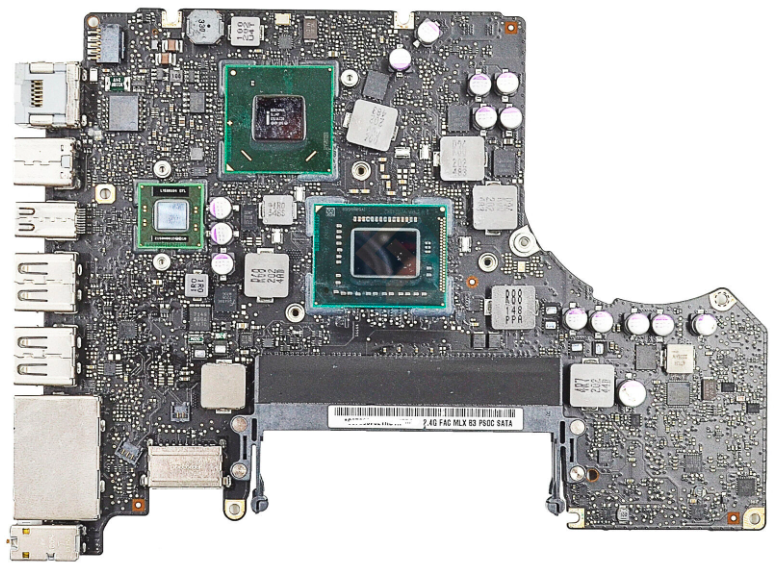
Macbook Pro A1286 2010-2012: Solution for AMD GPU Issues
Is your AMD GPU experiencing issues?
Symptoms of possible damage:
- It doesn't power on.
- Restart loop.
- Boots without video.
- Only starts in recovery mode.
- Frequent restarts.
- Blue screen at startup.
- Gradually worsening distorted video.

It's important to note that some symptoms can overlap, and the order may vary depending on the specific hardware or software issue. If you experience any of these symptoms, it's crucial to seek professional assessment and repair to prevent further damage to your device.
Notes for repair and troubleshooting:
Many technicians might consider this device irrecoverable, but there's actually a solution to get it back to 100% functionality. It involves performing hardware work on the logic board, completely disabling the AMD GPU and enabling the device to operate with the secondary Intel card. This opens up the opportunity to upgrade the processor and convert it into a 2012 4K model.
Aspects to consider:
- The F1 and F2 buttons, which control the keyboard backlight, will be disabled, but they can be replaced with the "QuickShade" application, configured to start automatically with the system and control brightness using shortcuts "Ctrl+1" to decrease and "Ctrl+2" to increase it.
- The Thunderbolt port will be disabled due to its control being affected by the damaged GPU, but you will be able to project the screen onto other visual devices using Bluetooth, such as the Apple TV.
- The sensor that puts the device to sleep when closing the lid will also be disabled. To address this, you can use terminal-level programming. Open the Terminal app and type "sudo pmset -a disablesleep 1," enter the administrator password, and you're set. If you want to reactivate this feature, use "0" instead of "1." You can also use the "NoSleep" application, which performs the same function visually and starts with the system.
In any case, it's important to avoid forcibly shutting down the device using the power button and never resetting the SMC (Shift+Ctrl+Alt+Power) or NVRAM (Alt+Cmd+P+R) during startup, as this can affect crucial system settings.
Highlighted specifications:
- Macbook Pro A1286 2012 4K
- Procesador i7
- 16 GB de RAM
- SSD 256GB-1TB (Conexión SATA lll)
- HDD 1-4TB (SATA II connection, replaces the optical drive using a caddy adapter)
- macOS High Sierra (with updates)
- Essential full applications
Other aspects to consider:
- Install the "SMC Fan Control" application to manually adjust the fan RPM and have better control over generated temperature.
- Due to the fact that your equipment isn't recent, it's important to avoid overheating. We recommend using high-quality RAM and low-voltage technology such as "DDR3L," which will help keep the temperature low.
- Replace the HDD with an SSD to improve speed and reduce the temperature of the equipment.
- Use the Software Speed Patch to significantly improve performance.
- The compatible operating system for your device is "High Sierra." Don't attempt to upgrade to a newer version, but you can install updates for the same system.
- This device can run most, if not all, the necessary applications for design, editing, office tasks, and video conferencing.
Final note:
Final note:
Repairing and improving this device will allow you to use it for an additional 5-10 years, making it worth considering.
If you're interested in acquiring this device at a special price.
Final gift:
If you want to try troubleshooting your Mac on your own before sending it for repair, follow these instructions:
- Make sure your machine is completely powered off. To reset the SMC, press the keys "Shift+Ctrl+Alt+Power".
- Turn on your computer while holding down the "Command+S" keys. The system will display white text on a black screen and will halt when prompted.
- In the message, enter the following command without the quotation marks: "nvram fa4ce28d-b62f-4c99-9cc3-6815686e30f9:gpu-power-prefs=" and press Enter.
- Then, enter "reboot" and press Enter.
- Immediately after rebooting, hold down the Command + R keys (if you're running OS X 10.11 or later) to start in Recovery Mode. If you don't have a recovery partition, you can boot from a Mac OS installation USB drive.
- Once in Recovery Mode, open Terminal and execute the following command: "csrutil disable".
- Restart the system.
After restarting, your system should operate without the dedicated GPU and function normally. Remember that it's always recommended to seek professional assistance if you're not comfortable performing these steps.
Related

Author
 English
  Spanish