16 Operating Systems in 1: How to Create a Multiboot USB with Macrium Reflect
Step 1: Download and Install Macrium Reflect on Windows 10
To begin, download and install the Macrium Reflect application on a Windows 10 PC. You can obtain the application from the following link: Download link.
Step 2: Restore the "mrig" image on a drive of at least 3 TB.
You have received an image named "mrig" via email. Use Macrium Reflect to restore this image to a drive with a capacity of at least 3 TB. Make sure you have enough space to accommodate the different operating systems you want to install.
Step 3: Access the boot options and boot from the restored drive.
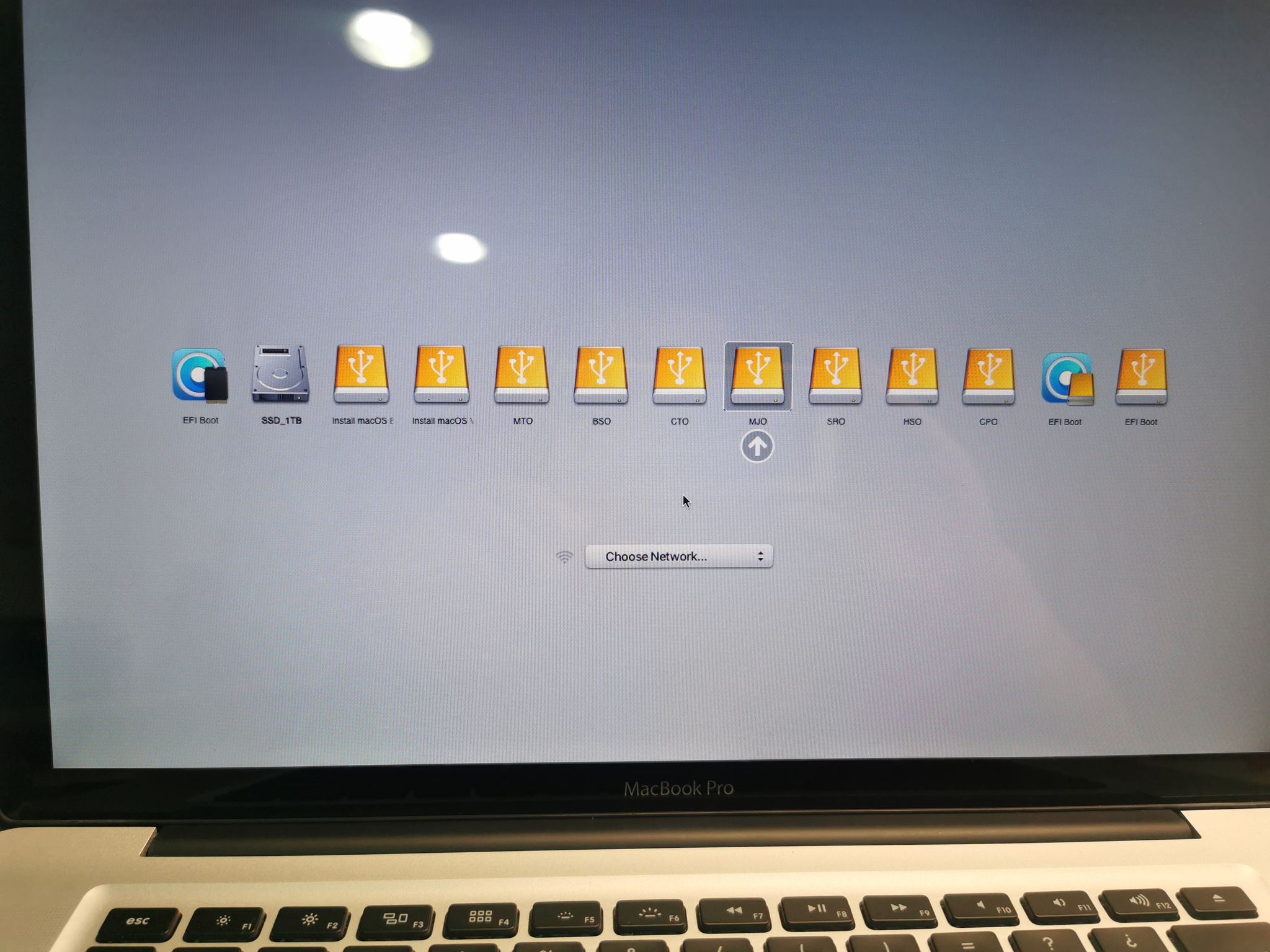
Once you have restored the image onto the drive, you will be able to access all the boot options of your Mac. When starting up, press and hold the "ALT" key to access these options. This will allow you to select the restored drive and boot from it.
Step 4: Prepare the installer for the unsupported operating system.
If you wish to install an unsupported operating system, you will need the original installer on a USB drive with a capacity of at least 16 GB. For instance, you can download the installer for Monterey or Ventura from the following link: Download link. Ensure you have the corresponding installer before proceeding.
Step 5: Boot from the USB drives and select the appropriate EFI.
Connect both USB drives (the restored drive and the USB with the installer of the unsupported system) to your Mac. Restart it and hold down the "ALT" key to access the boot options. You will see all available options, but select the second EFI. This will take you to a black screen with the available operating systems in EFI version.
Step 6: Clone the desired operating system onto your Mac.
Once on the EFI operating systems screen, you can clone the operating system you wish to install on your Mac. Follow the relevant instructions to clone and set up the selected operating system.
With this multiboot configuration, you can have up to 16 operating systems available on your Mac, providing you with flexibility and options for various needs and preferences.
Remember to follow the instructions carefully and ensure you have the appropriate installers for the operating systems you want to use on your Mac.




 English
  Spanish